Loading local resources safely in Power Pages
External CDNs often fail against strict CSP policies in Power Pages. We show the options for providing scripts and stylesheets natively as Web Files and loading them synchronously in the browser.
Contents
- External dependencies and CSP blocks
- The native approach through Dataverse
- Resource management in practice
- Local paths instead of external URLs
External dependencies and CSP blocks
When development teams want to add modern web technologies such as React or utility CSS frameworks to Power Pages for an extensive frontend redesign, they often go straight to content delivery networks (CDNs). In enterprise environments, however, this approach quickly creates problems. The browser blocks the requests.
My article on Power Pages supply chain attacks explains why this approach presents a security risk. The Content Security Policy (CSP) is configured strictly in the Power Platform. Any attempt to load third-party resources dynamically results in an error. The console reports Refused to load the script. In enterprise practice, this approach leads to unpredictable loading behavior and forces developers into workarounds that attract negative attention in every security audit.
The problematic code as an anti-pattern
A common attempt is to obtain resources from external CDNs through a central array and loading function. In a standard Power Pages environment without explicitly relaxed CSP, this code inevitably stops:
// Call this function immediately to load extern resources
(function () {
  const resources = [
    { type: 'script', url: 'https://cdn.jsdelivr.net/npm/@tailwindcss/browser@4' },
    { type: 'link', url: 'https://cdn.jsdelivr.net/npm/basecoat-css@0.3.11/dist/basecoat.cdn.min.css' },
    { type: 'script', url: 'https://cdn.jsdelivr.net/npm/basecoat-css@0.3.11/dist/js/all.min.js' },
  ];

  function loadResource(index) {
    if (index >= resources.length) return;
    const res = resources[index];
    let element;

    if (res.type === 'script') {
      element = document.createElement('script');
      element.src = res.url;
      element.async = false;
      element.onload = () => loadResource(index + 1);
      document.body.appendChild(element);
    } else {
      element = document.createElement('link');
      element.rel = 'stylesheet';
      element.href = res.url;
      document.head.appendChild(element);
      loadResource(index + 1);
    }
  }
  loadResource(0);
})();
The consequence: the browser blocks access to cdn.jsdelivr.net because only the site’s own domain ('self') is classified as a trusted source by default.
The native approach through Dataverse
The professional solution avoids external dependencies and stores important assets within the system itself. This eliminates the risk of a supply chain attack and adds resources to Power Pages through native Web Files. These special records store files such as scripts, stylesheets or images directly in Dataverse. This approach provides the foundation for implementing a custom design system without being restricted by the platform’s standard specifications.
Because the browser recognizes these files as internal ('self'), the CSP block is avoided. Resources use relative URLs. This improves security and makes deployment across environments easier. Storing scripts as web files in the portal is central to this strategy.
Resource management in practice
To show developers the available options, we examine the process at two levels: structured creation in the backend and error-free embedding in the frontend.
Step 1 Creating the Web File in Portal Management
To provide a JavaScript or CSS resource, open the Portal Management app. The original screenshots below retain their German interface; the English instructions explain each relevant field and action.
- Create a record: go to Content > Web Files and create a new entry.
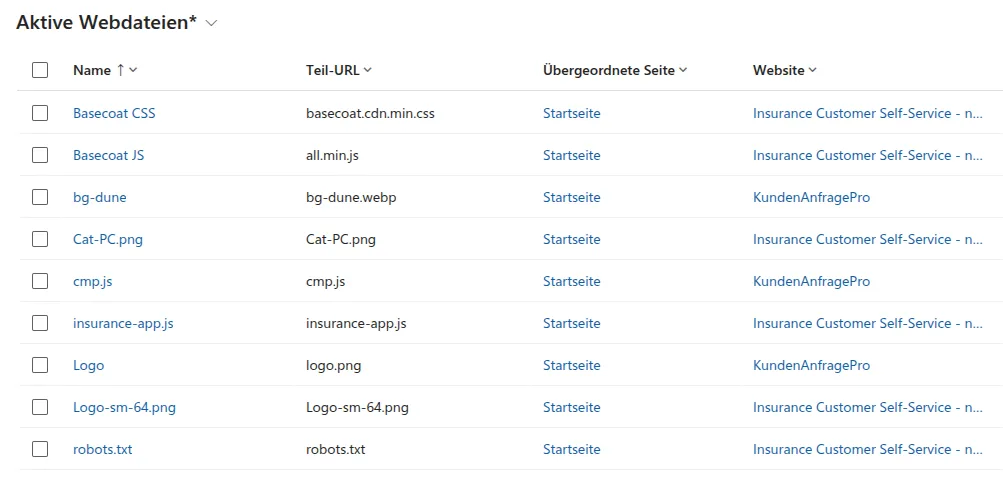 Figure: The Web Files overview in the Portal Management app is the starting point for custom scripts and styles. Internal resources are managed centrally here.
- Define the Partial URL: enter the exact path name, for example
tailwind.js. This value defines the exact URL used to access the file. Avoid special characters. - Establish context: select the Home page as the Parent Page. The file is attached to this page in the hierarchy.
- Check publication: make sure the Publishing State is set to Published.
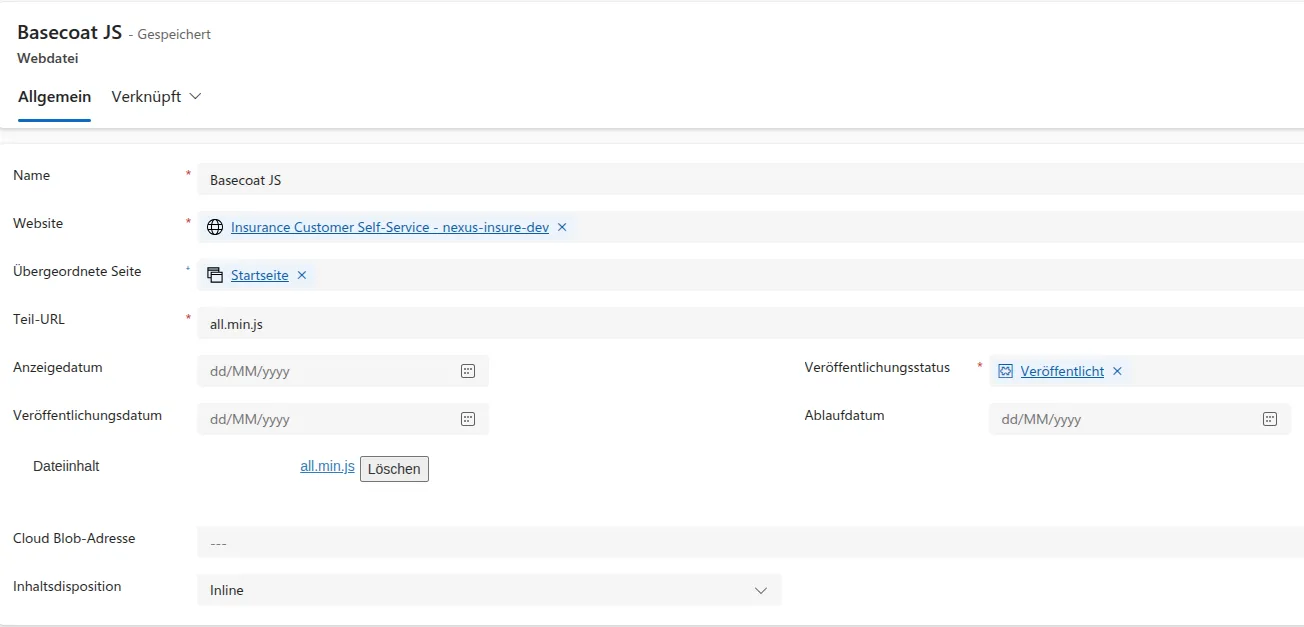 Figure: The Web File configuration defines its eventual path and publication status. The file is accessible in the portal only with a correctly defined Partial URL.
- Save the record: the file upload field is enabled only after the Web File record is saved for the first time.
- Upload the file: use the record’s File Content field, labeled Dateiinhalt in the original screenshot, to upload the actual file. Power Pages stores it internally as an attachment to a note.
 Figure: The actual file upload becomes available only after the first save. The script or stylesheet is then stored as a Web File in the Dataverse context.
- Check the MIME type: make sure the format is
application/javascriptortext/css, depending on the file type.
Step 2 Standard embedding in source code
Once the web file is available in Dataverse, it can be embedded anywhere like a local asset. This can be done in a central Web Template such as the header navigation or in a subpage’s Copy field. Remember that Power Pages already loads many standard files automatically, which may conflict with your styles.
<script src="/tailwind.js"></script>
<link rel="stylesheet" href="/basecoat.css" />
This approach is simple and sufficient for basic resources without complex dependencies. If you use modern web frameworks such as React, however, replace this manual process with automated deployment through PAC CLI to speed up release cycles.
Step 3 A safe loader for asynchronous pages
Static loading is often insufficient in portal scenarios. Power Pages loads much of its content asynchronously. Scripts executed too early cause JavaScript errors, such as null reference, because the page is not fully ready. This is particularly critical for features that must be available immediately, such as user authentication.
 Figure: This browser console error occurs when a script starts before the page has finished building. This is why dynamic Power Pages pages need a delayed loader.
A dynamic loader prevents these problems. We use a function that needs no external calls and waits for the page to be built:
(function () {
  // Ressource array of local Web Files
  const resources = [
    { type: 'script', url: '/tailwind.js' },
    { type: 'link', url: '/basecoat.css' },
    { type: 'script', url: '/basecoat.js' },
  ];

  function loadResource(index) {
    if (index >= resources.length) return;
    const res = resources[index];
    let element;

    if (res.type === 'script') {
      element = document.createElement('script');
      element.src = res.url;
      // Important: We wait for the current script to load successfully
      element.onload = () => loadResource(index + 1);
      document.body.appendChild(element);
    } else {
      element = document.createElement('link');
      element.rel = 'stylesheet';
      element.href = res.url;
      document.head.appendChild(element);
      // CSS does not block in the same way, so we proceed immediately
      loadResource(index + 1);
    }
  }

  // Wait for the page and add a short delay of 100ms
  window.addEventListener('DOMContentLoaded', () => {
    setTimeout(() => {
      loadResource(0);
    }, 100);
  });
})();
The short delay gives Power Pages time to build all elements and structures before the scripts start. This matters especially in complex architectures where we use CSS isolation and a three-layer strategy to clearly separate the design system from the standard theme.
Local paths instead of external URLs
Uploading resources as Web Files consistently prevents CSP blocks. The combination of controlled loading and setTimeout provides a stable solution.
My project on modernizing a Power Pages portal with e-commerce and Tailwind CSS shows how this recommended approach was used to completely redesign an existing website. Developers gain full control over execution timing, avoid error messages and use only the Microsoft ecosystem. This method clearly separates content from technology.
Do your Power Pages portals have timing errors or blocked scripts? Explore my reference projects, or let us discuss how to establish a stable and secure portal architecture.