Automating React application deployment in Power Pages
Learn how to replace inefficient manual uploads in Power Pages with an automated deployment script and a side-by-side architecture.
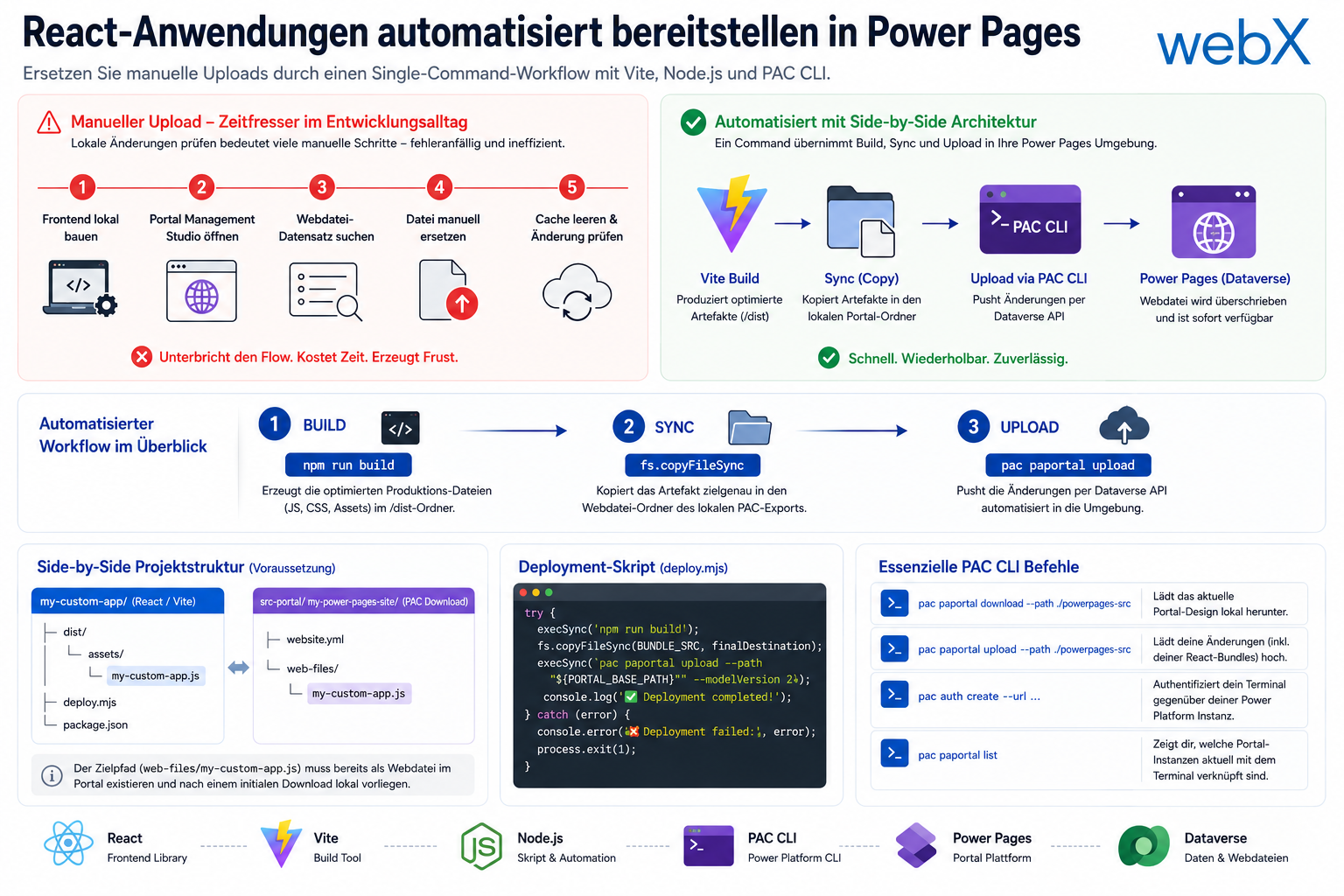
Contents
- Power Pages development and manual upload overhead
- Power Pages architecture with side-by-side automation
- A deep dive into Power Pages workflow automation
- Essential PAC CLI commands for the Power Pages workflow
- Strategic value and decoupling Power Pages systems
Power Pages development and manual upload overhead
A typical scenario in a hybrid enterprise architecture: we add a custom, highly interactive React frontend to an existing Microsoft Power Pages portal by storing the compiled JavaScript bundle as a web file in Dataverse.
The problem is the inefficient local development and testing cycle. To verify a small code change in the DEV environment, developers typically have to follow several time-consuming manual steps: build the frontend locally, open Portal Management Studio, find the relevant web file record, replace the file manually and clear the Power Pages cache to see the changes. This process is error-prone, interrupts concentration and costs valuable time.
Manual versus automated upload steps
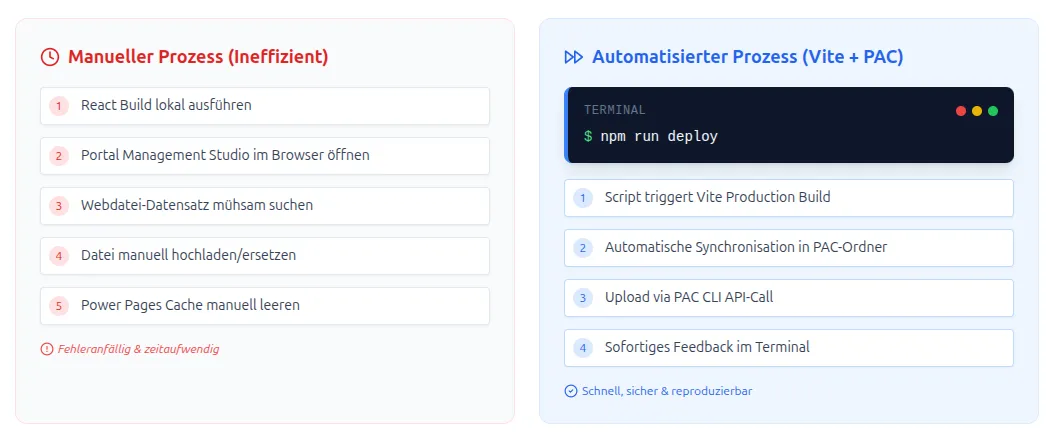
Figure: Manual versus automated upload in Power Pages. On the left are many individual manual steps; on the right is a single CLI command. The original illustration retains its German labels.
The inefficient manual process
The traditional approach requires several manual intermediate steps that interrupt focus:
- Run the React build locally.
- Open Portal Management Studio in the browser.
- Find the web file record.
- Upload or replace the file manually.
- Clear the Power Pages cache manually.
The automated process with Vite and PAC
The new workflow reduces the effort to a single command:
- The script triggers a Vite production build.
- Artifacts synchronize automatically to the PAC folder.
- An API call through PAC CLI uploads the files.
- The terminal provides immediate feedback.
Interactive visualization of the deployment process
The shared illustrative demo below retains its German interface text. It compares the manual steps with the automated deployment flow.
Verfolgen Sie den automatisierten Deployment-Prozess in Echtzeit.
Ihr React-Frontend ist bereit für das Deployment.
deployment_terminal$npm run deployDamit dieser Prozess funktioniert, muss die Webdatei einmalig manuell im Portal Management Studio angelegt worden sein. Das Skript erkennt existierende Pfade und überschreibt die Inhalte per PAC CLI API.
Power Pages architecture with side-by-side automation
To eliminate this inefficiency, we automate the entire developer workflow. The solution combines a side-by-side project structure with a tailored deployment script. Our implementation of this automated Vite and PAC CLI deployment pipeline in the ECE project demonstrates the practical difference.
We use Power Platform tooling, particularly the PAC CLI, but control it directly from the frontend build process, for example Vite. The aim is a single-command workflow: the script builds the frontend, synchronizes generated artifacts directly into the appropriate local Power Pages folder structure and then pushes all changes to the Dataverse environment through PAC CLI. This saves time and makes local development efficient again.
A deep dive into Power Pages workflow automation
The logic behind the deployment script
This script is essential for eliminating manual work. It uses the Power Platform CLI (PAC) to transfer frontend build artifacts directly into Dataverse web files.
An important technical point first: PAC CLI does not create new web files in Power Pages. It only overwrites existing records. Before the script can run successfully for the first time, you must create the relevant web file manually in Portal Management Studio and add any placeholder file as an attachment. My article on loading local resources safely in Power Pages provides detailed step-by-step instructions.
You must then download the portal metadata with pac pages download. Only this step updates the local YAML configuration files and makes the new web file resource known to the local project. Without this synchronization, PAC CLI cannot resolve the target correctly during a later upload. Once this initial record exists locally, the script can address the file on every run and replace it with the current build.
Getting started: we document the necessary manual creation of the web file in Portal Management Studio, followed by pac pages download to make the metadata structure available locally for later automation. The original recording retains its German interface.
The sequence is clearly structured. First, the script triggers the Vite build and generates optimized production files (JavaScript, CSS and assets) in /dist. It then copies those files to the exact path managed by pac pages for web files. Finally, the script uploads them with pac pages upload and automatically pushes all changes to the intended Power Pages environment. This ensures a consistent, repeatable and error-free process.
The sequence at a glance:
| Phase | Base command | Description |
|---|---|---|
| 1. Build | npm run build | Generates optimized production files (JavaScript, CSS and assets) in /dist. |
| 2. Sync | fs.copyFileSync | Copies the artifact into the web file folder of the local PAC export. |
| 3. Upload | pac pages upload | Automatically pushes changes to the environment through the Dataverse API. |
Power Pages project structure requirements
For the script to resolve paths correctly, we require a side-by-side folder structure. The frontend project and portal code downloaded with PAC CLI are adjacent directories:
Side-by-side architecture
/my-repository/
  my-custom-app/                 # Your React/Vite frontend
    dist/
      assets/
        my-custom-app.js        # The built artifact
    deploy.mjs                  # Our deployment script
    package.json
  src-portal/
    my-power-pages-site/        # The Power Pages download
      website.yml              # Required for PAC CLI
      web-files/
        my-custom-app.js        # The target of the copy command
The following compact Node.js script runs in the frontend project’s root directory:
import { execSync } from 'node:child_process';
import fs from 'node:fs';
import path from 'node:path';
import { fileURLToPath } from 'node:url';

const __filename = fileURLToPath(import.meta.url);
const __dirname = path.dirname(__filename);

// Path to the built frontend artifact
const BUNDLE_SRC = path.resolve(__dirname, 'dist/assets/my-custom-app.js');

// Local download path of the portal via "pac pages download"
const PORTAL_BASE_PATH = path.resolve(__dirname, '../src-portal/my-power-pages-site');

// The exact target path of our web file in the portal
const PORTAL_DEST_PATH = path.join(PORTAL_BASE_PATH, 'web-files', 'my-custom-app.js');

try {
  console.log('[Build] Starting frontend build...');
  execSync('npm run build', { stdio: 'inherit', shell: '/bin/bash' });

  // Special logic for Power Pages web files
  let finalDestination = PORTAL_DEST_PATH;

  if (fs.existsSync(PORTAL_DEST_PATH)) {
    const stats = fs.lstatSync(PORTAL_DEST_PATH);

    if (stats.isDirectory()) {
      // If it is a folder (Power Pages metadata structure),
      // we deliberately write the file INTO the folder
      finalDestination = path.join(PORTAL_DEST_PATH, 'my-custom-app.js');
    }
  }

  console.log(`[Copy] Copying bundle to: ${finalDestination}`);
  fs.copyFileSync(BUNDLE_SRC, finalDestination);

  console.log(`[Upload] Starting PAC CLI upload for portal path: ${PORTAL_BASE_PATH}`);

  // IMPORTANT: The path must point directly to the folder containing website.yml
  execSync(`pac pages upload --path "${PORTAL_BASE_PATH}" --modelVersion 2`, {
    stdio: 'inherit',
    shell: '/bin/bash',
  });

  console.log('[Success] Deployment completed!');
} catch (error) {
  console.error('[Error] Deployment failed:');
  console.error(error.message);
  process.exit(1);
}
Essential PAC CLI commands for the Power Pages workflow
These are the essential PAC CLI commands for daily work within your repository workflow:
| Command | Purpose |
|---|---|
pac pages download --path ./powerpages-src | Downloads the current portal locally. |
pac pages upload --path ./powerpages-src | Uploads your changes. |
pac auth create --url ... | Authenticates your terminal against your Power Platform instance. |
pac pages list | Shows which portal instances are currently associated with the terminal. |
Strategic value and decoupling Power Pages systems
This approach greatly simplifies the system landscape. Instead of forcing full Power Platform management where it adds little value, we connect traditional web developers and Power Platform administrators. The result is significantly faster release cycles without repetitive manual uploads in Portal Management.
Web application code remains clearly separated from portal code and can be tested independently. This enables genuine decoupling within an enterprise Azure and Dataverse environment.
Are you looking to speed up frontend development in the Microsoft environment or prepare your enterprise architecture for future needs? Explore my reference projects, or let us discuss how to automate your deployment workflows efficiently.