Power Pages design system and clean CSS overrides
Removing Bootstrap and system CSS from Microsoft Power Pages causes errors. Build a custom design system safely by selectively overriding standard styles.
Note: This is part 2 of our three-part series on Power Pages design.
Contents
- Customize Power Pages CSS safely instead of deleting it
- Preventing layout shifts and FOUC
- Three important consequences of CSS manipulation
- Best practice for implementing a custom design system in Power Pages
Customize Power Pages CSS safely instead of deleting it
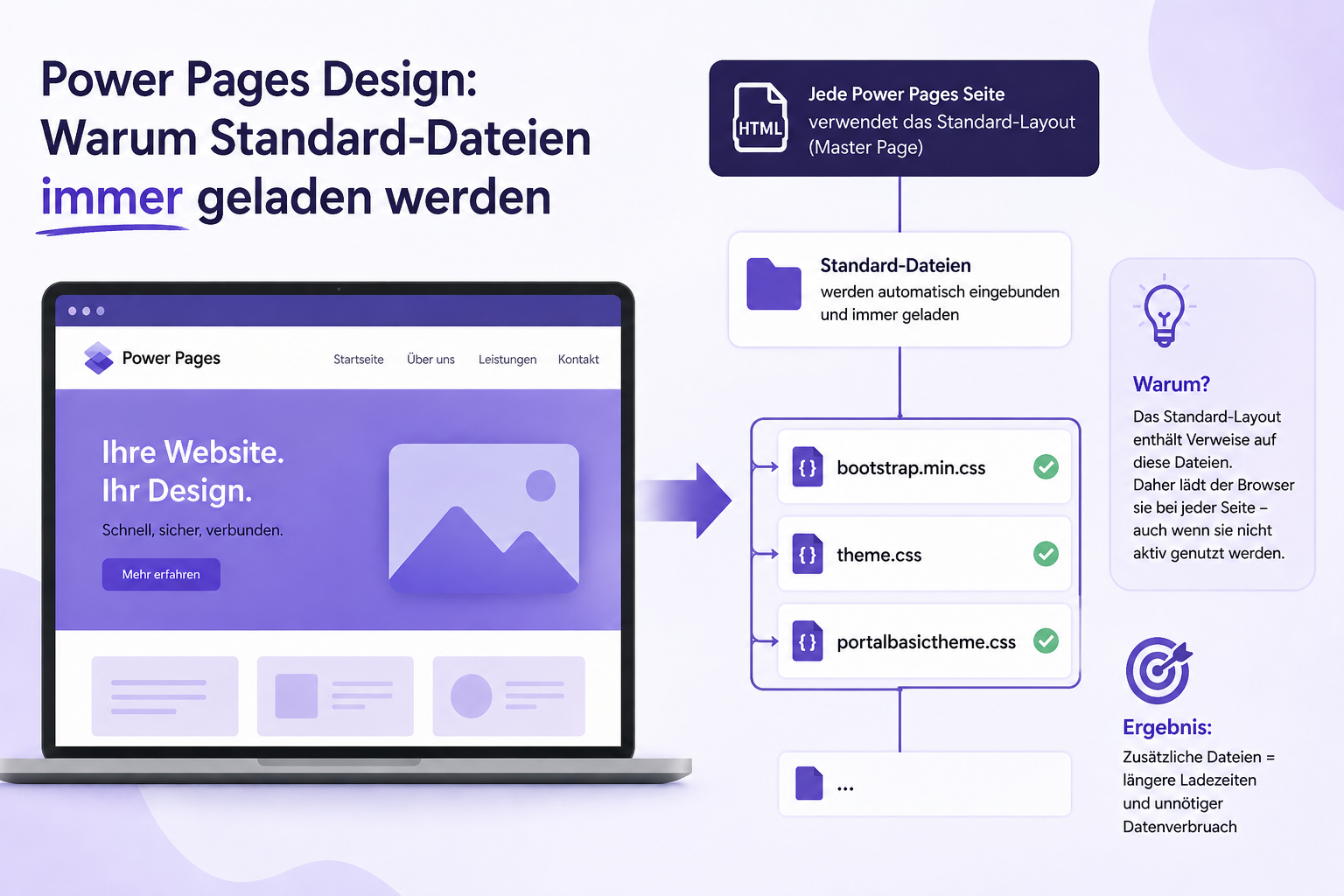
In the first part, we saw that Power Pages automatically loads system files in the background. This leads many developers to an idea: if I cannot configure the CSS, I can simply delete the references from the DOM with JavaScript.
Technically, this is possible. Adding this code to your “Header” web template removes the references after the page loads:
// Remove Bootstrap and system CSS from the page
document
  .querySelectorAll(
    'link[href*="bootstrap"], ' +
      'script[src*="bootstrap"], ' +
      'link[href*="account"], ' +
      'link[href*="preform"], ' +
      'link[href*="portalbasictheme"], ' +
      'link[href*="glyphicons"], ' +
      'link[href*="font-awesome"]'
  )
  .forEach((el) => el.remove());
Why jQuery in the header causes problems
Power Pages does not guarantee that jQuery has already loaded when the “Header” web template runs. Trying to use jQuery before it is available can cause an error. Using plain JavaScript to remove the elements is therefore safer.
If you try to use jQuery before it has loaded, an error such as Uncaught ReferenceError: $ is not defined stops the script and makes the Power Pages page unusable.
 Figure: The browser error shows that jQuery is not yet available in the header. Accessing it too early stops the script and makes the page unstable. The original screenshot retains its German interface.
Identifying and isolating system files
| Selector | Reason for removal |
|---|---|
link[href*="bootstrap"] | Removes Bootstrap CSS files. |
script[href*="bootstrap"] | Removes Bootstrap JavaScript files. |
link[href*="account"] | Specific styles for account-related pages that are often unnecessary. |
link[href*="preform"] | Legacy form styles. |
link[href*="portalbasictheme"] | Specific styling defaults for the portal layout. |
link[href*="theme.css"] | The portal’s “Basic Theme”, often containing global colors and fonts. |
link[href*="glyphicons"] | Legacy icon fonts that often conflict with modern SVGs. |
link[href*="font-awesome"] | Legacy icon fonts that often conflict with modern SVGs. |
Risks of removing standard styles
As soon as this code runs, the standard styles disappear. The result is an unstyled HTML structure. In addition, removing Bootstrap’s JavaScript also makes interactive Power Pages components lose their functionality.
Errors become difficult to trace, as the image below shows. Analyzing and correcting these errors takes considerable time.
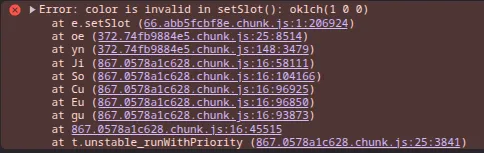 Figure: After core system files are removed, the runtime reports an error involving colors and slots. This shows that Power Pages still depends on these styles internally. The original screenshot retains its German interface.
Why does this error occur?
The error message Error: color is invalid in setSlot(): oklch(1 0 0) shows that the Power Pages runtime, for example through components such as the header or footer template, is trying to access CSS variables or styles that have just been removed.
If the Bootstrap <link> tag is removed after the browser has already started parsing, the internal Power Pages JavaScript process enters an inconsistent state. The script expects defined CSS classes or color schemes but can no longer find them because the source file is missing.
Is this error really a problem?
At this point, it is worth explaining why even this error is not a real problem: the error message is purely cosmetic and has no effect on your page’s security, design or functionality. It affects only the standard Power Pages design with Bootstrap, which is intended to be replaced by a custom design system anyway. Nevertheless, it is important not to leave persistent browser errors unresolved, to maintain application quality and maintainability.
Preventing layout shifts and FOUC
Layout shifts, also known as Flash of Unstyled Content (FOUC), occur when removing standard styles briefly leaves the original design visible before the custom design system takes effect. To maintain a professional and consistent appearance, take targeted measures to prevent this flash of unstyled content.
When scripts should run
Wrapping the code in a window.onload event resolves the initial error problem because it runs only after the DOM has fully loaded. The window.onload event guarantees that all resources, including images, scripts and styles, have loaded before the code runs. This avoids the error because the elements being accessed are already present in the DOM.
// After the page has fully loaded, remove Bootstrap and system CSS
window.addEventListener('load', () => {
  document
    .querySelectorAll(
      'link[href*="bootstrap"], ' +
        'script[src*="bootstrap"], ' +
        'link[href*="account"], ' +
        'link[href*="preform"], ' +
        'link[href*="portalbasictheme"], ' +
        'link[href*="glyphicons"], ' +
        'link[href*="font-awesome"]'
    )
    .forEach((el) => el.remove());
});
This approach is the only way to remove Power Pages’ standard styles and scripts without causing a browser error.
However, this method creates another problem: Flash of Unstyled Content (FOUC). Because the page loads completely before your script removes the old styles, users briefly see the standard Power Pages design, which then suddenly switches to your new layout. This flash is visually distracting and creates an unprofessional impression.
What the FOUC problem looks like
The following video shows what happens when you remove Power Pages’ standard styles with window.onload: the page initially loads with the standard Power Pages design, then switches to your custom design system after a brief moment. This flash of unstyled content is the typical FOUC problem with this method. The original recording retains its German interface.
Preventing layout shifts caused by FOUC
Removing standard styles with window.onload causes an unpleasant effect: Flash of Unstyled Content (FOUC). Since the page loads completely before your script removes the old styles, users briefly see the standard Power Pages design, which your custom layout then abruptly replaces.
To prevent this unwanted effect, we use a hide-and-reveal strategy. We initially hide the page content with CSS and reveal it only when our changes are active.
The following code uses the hide-and-reveal pattern and is added to the Header web template in Power Pages portal management:
<style id="fouc-style">
  /* Hide the body content until the page is fully loaded */
  body {
    visibility: hidden !important;
    opacity: 0 !important;
  }
</style>

<script>
  window.addEventListener('load', () => {
    // ... code to remove Bootstrap and system CSS ...

    // After removing the styles, reveal the content smoothly
    const style = document.getElementById('fouc-style');
    if (style) {
      document.body.style.transition = 'opacity 0.3s ease-in';
      document.body.style.opacity = '1';
      document.body.style.visibility = 'visible';
      style.parentNode.removeChild(style);
    }
  });
</script>
FOUC prevention explained in a video
The following video shows the FOUC pattern in action: the page initially loads with the standard Power Pages design, then switches to your custom design system after a brief moment. The hide-and-reveal strategy creates a smooth transition that prevents the unwanted appearance of unstyled content and leaves a consistent impression. The original recording retains its German interface.
Why this method is so effective:
- CSS blocking: The browser processes
visibility: hiddenimmediately, before page rendering begins. - Smooth transition: Combining
opacitywith a shorttransitioneffect reveals the page smoothly rather than abruptly. - Clear separation: Your custom design system is already loading in the background while the content remains hidden. By the time users see the content, your styling is fully applied.
Three important consequences of CSS manipulation
Before you try removing Microsoft’s standard files from the portal, consider three important consequences:
- Loss of component functionality: Power Pages forms, data-grid lists and navigation elements lose their layout. They depend directly on the deleted Bootstrap classes.
- Broken sign-in pages: The login and profile areas become unusable in Power Pages. These deeply embedded Microsoft pages rely heavily on system styles.
- High maintenance effort after updates: Paths can change with every Power Pages update. A manual scripting approach can therefore quickly produce unpredictable layout errors.
Best practice for implementing a custom design system in Power Pages
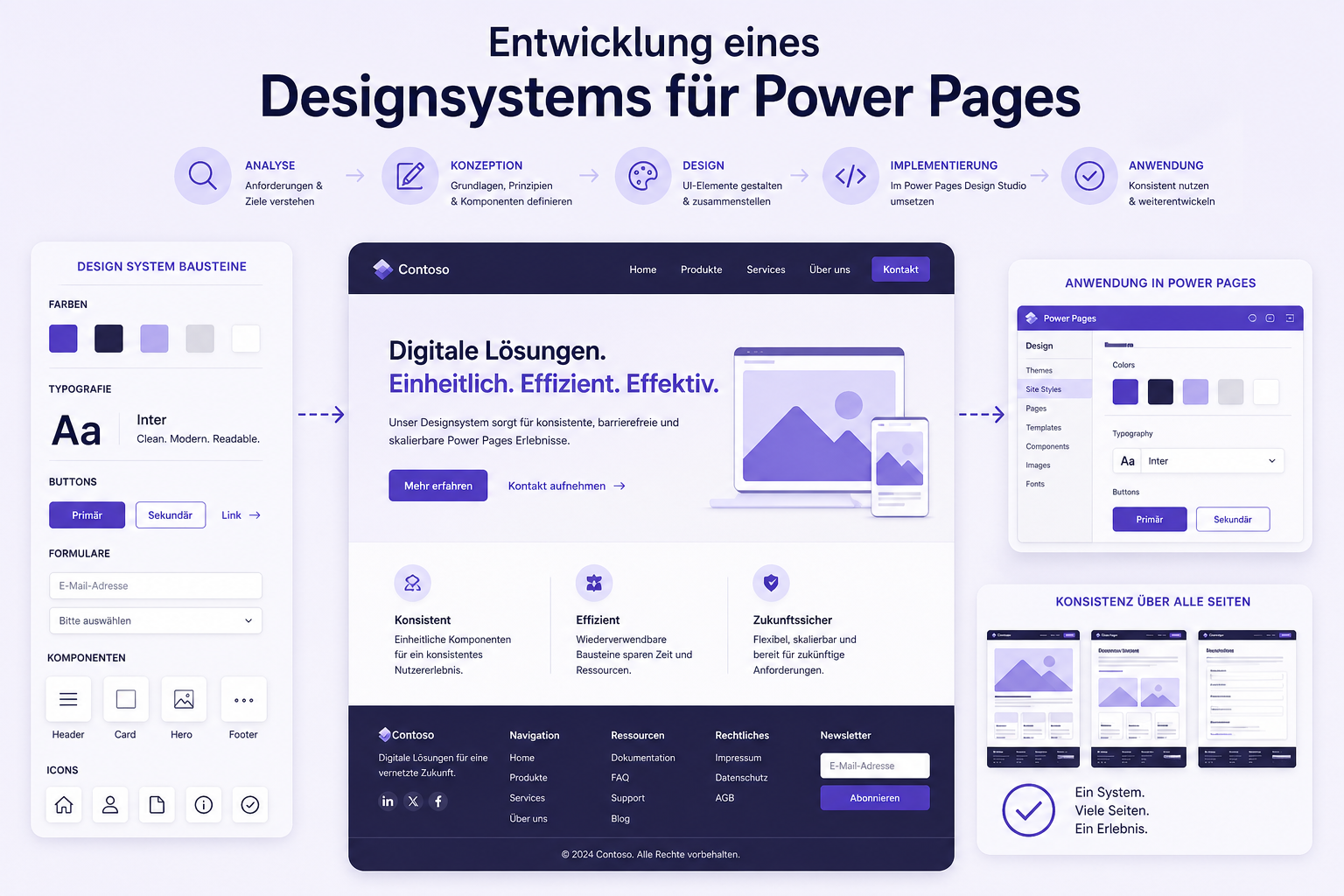
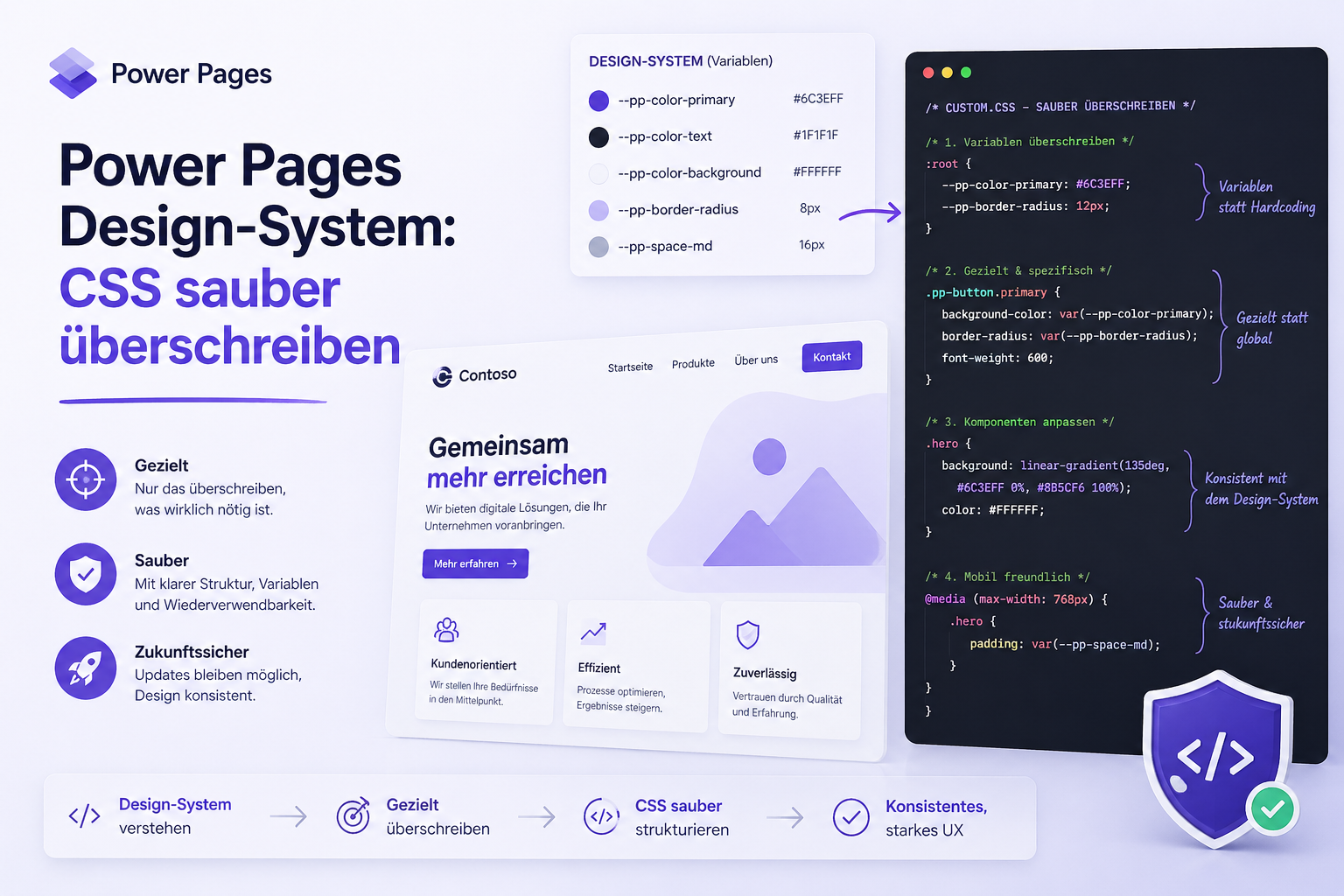
Instead of removing Power Pages system files from the DOM with JavaScript, professional CSS management is the proven approach. Use a custom design system and selectively override the standard CSS. Our successful implementation of a consistent design system in the ECE client portal illustrates the stability of this approach.
To add your custom layout to Power Pages reliably, create a custom CSS file and load it after Microsoft’s standard files. Specific CSS selectors or a custom class prefix automatically give your styles priority. Defining custom classes such as .my-portal-button or using a container ID for CSS specificity makes the browser use your design system. At the same time, the basic functionality of all Power Pages components remains intact.
This safe approach keeps your Microsoft Power Pages portal stable, lets it survive all future system updates and still fully meets your individual design requirements.
The third and final part explains how to structure these changes cleanly without damaging global styles:
Power Pages design series
- Back to part 1: Why standard files always load
- Override CSS cleanly (you are here)
- Continue with part 3: Developing a design system