Excel integration in Power Pages for bulk editing without overhead
Learn how to build Excel files programmatically with ExcelJS and process them directly in Power Pages through automated workflows.
Contents
- Technical limits of manual data entry
- The hybrid approach with ExcelJS and Power Automate
- A stable spreadsheet interface step by step
- Why this effort pays off for you
Technical limits of manual data entry
Maintaining complex data in a portal quickly becomes frustrating when every record must be edited individually. Monthly energy and waste consumption reports in large property portals are a typical example. If a user has to enter thirty meter readings individually in web forms, errors inevitably follow.
I faced exactly this challenge in a client project. The standard portal offered no practical option for quick bulk changes. The way I addressed these technical limits in the ECE enterprise portal shows the practical benefit. Manual entry was time-consuming, frustrating and error-prone.
The hybrid approach with ExcelJS and Power Automate
I chose a hybrid solution that combines the familiar Excel environment with Power Pages security. Instead of forcing users into rigid web forms, we use dynamically generated Excel files for bulk import and export.
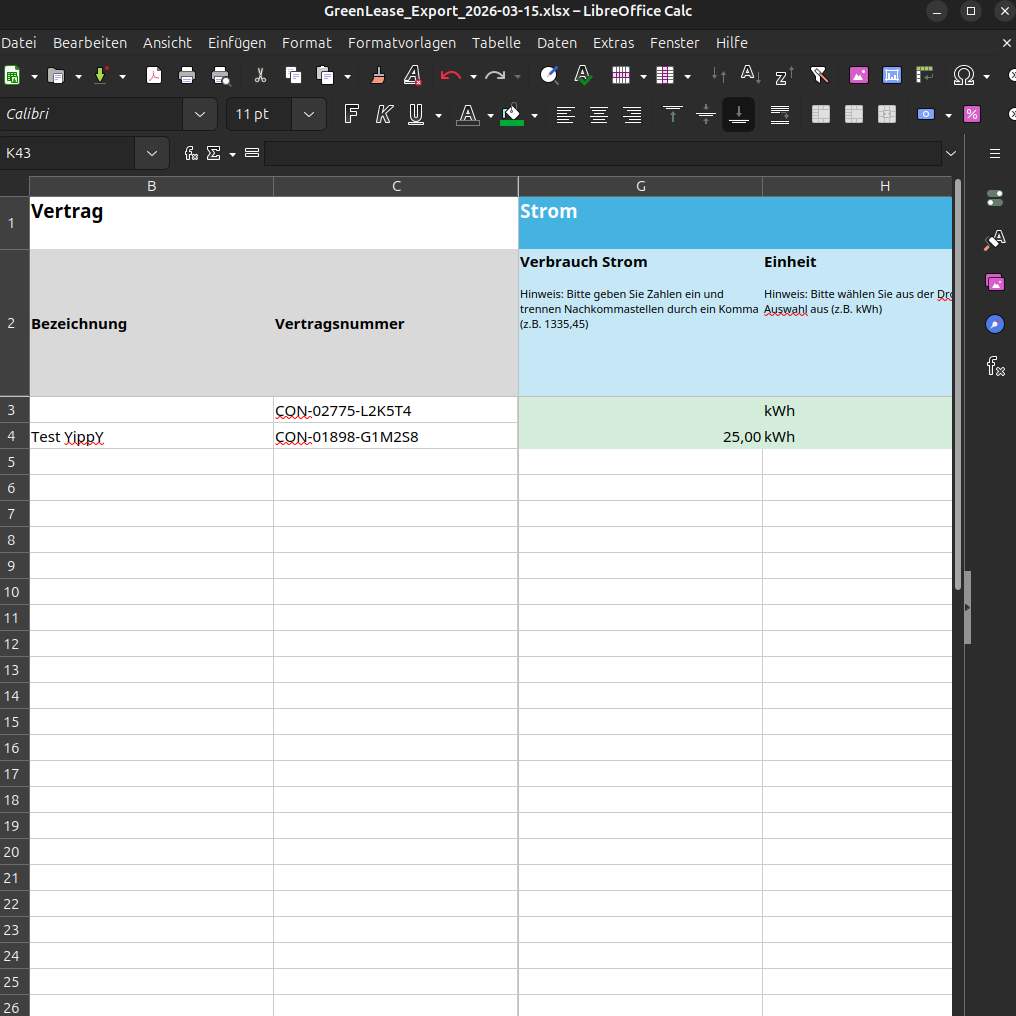
The portal generates a tailored Excel template in the browser with all relevant master data for the user. A closer look at this Excel workflow in Power Pages shows how robust the connection is. The user downloads the file, completes it offline and uploads it again. An automated background process handles validation and writes the data back to the system.
A stable spreadsheet interface step by step
I divided the technical implementation into three phases.
Generating the template: I use ExcelJS directly in the user’s browser to build the Excel file programmatically. I add dropdown lists for permitted values, define number formats and lock formula cells against accidental overwriting.
Transferring the file in the portal: A React widget handles uploading the completed file. I read the file, check its structure and send it to the backend. To avoid browser security issues, I store all scripts as local web files directly in the portal.
Processing in the backend: A Power Automate workflow handles server-side processing. It checks permissions, validates uploaded rows against business rules in Dataverse and writes the values to the database on success.
// Define validation schema for the Excel sheet
interface RowData {
  meterId: string;
  reading: number;
  readingDate: string;
}

// Client-side parser verifies basic constraints before upload
export function parseExcelData(sheetData: RowData[]): boolean {
  return sheetData.every((row) => {
    const hasValidReading = row.reading >= 0;
    const hasDate = !!row.readingDate;
    return hasValidReading && hasDate;
  });
}
Why this effort pays off for you
This hybrid workflow combines the strengths of both environments. You retain full control over data quality while users work in their familiar Excel environment. Error rates drop significantly because built-in rules prevent invalid entries while users fill in the spreadsheet.
Automated processing eliminates manual data transfer entirely. This saves time and reduces frustration for everyone involved. Alongside Excel import, direct batch editing with real-time browser validation is a useful addition for smaller corrections and a responsive user experience.
Are you planning complex data collection for your portal? Let us discuss which approach best fits your project.