Reduce Azure Monitor costs with Data Collection Rules and table transformations
Learn how Data Collection Rules (DCRs) and table transformations can significantly reduce the costs of Azure Monitor and Log Analytics Workspace.
Contents
- Data Collection Rules (DCRs) in Azure Monitor
- Workspace Transformation Data Collection Rules (Workspace DCR)
- Table transformations with Data Collection Rules
- Conclusion
Data Collection Rules (DCRs) in Azure Monitor
We start with what Data Collection Rules are and how to use them to minimize data volume.
Data Collection Rules are an Azure Monitor feature that helps us filter and transform data sent to Azure Log Analytics Workspace before it is stored. They let us control precisely which data is collected and how it is processed.
The original Azure Portal screenshots, illustrations and recording below are retained. German labels remain where they appear in the original media; the surrounding explanations describe the steps in English.
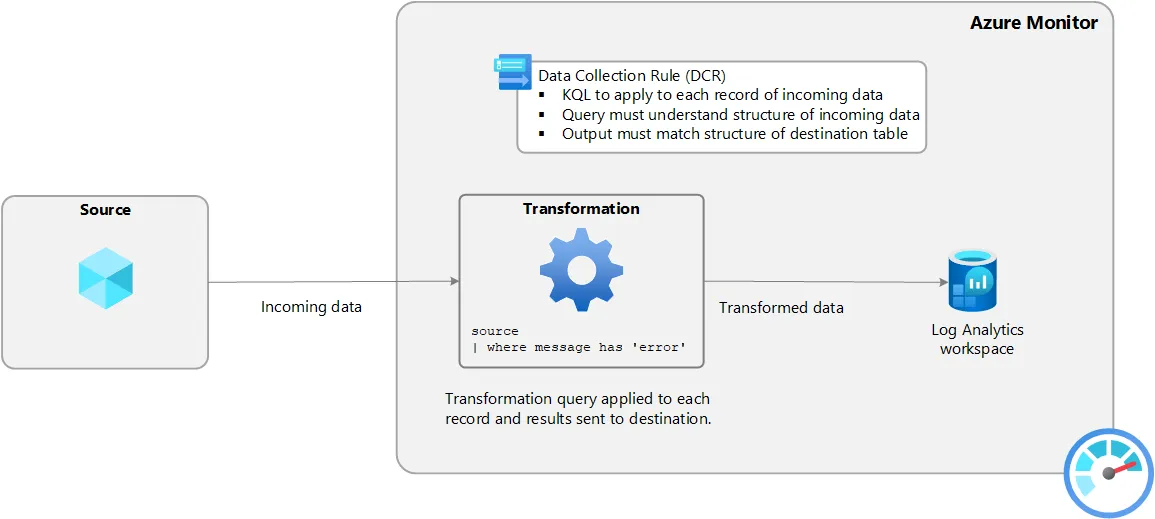 Figure: Overview of a Data Collection Rule.
Workspace Transformation Data Collection Rules (Workspace DCR)
Workspace Transformation Data Collection Rules are a special form of Data Collection Rule. A rule applies to the entire Log Analytics Workspace and is defined once per workspace. Each supported table in Azure Monitor can have a table transformation to reduce data volume.
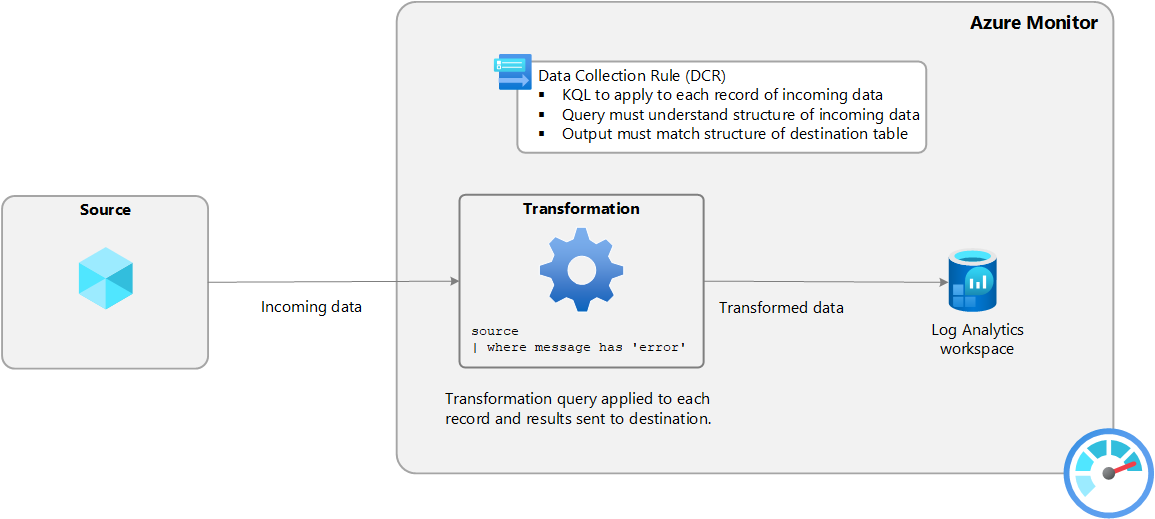
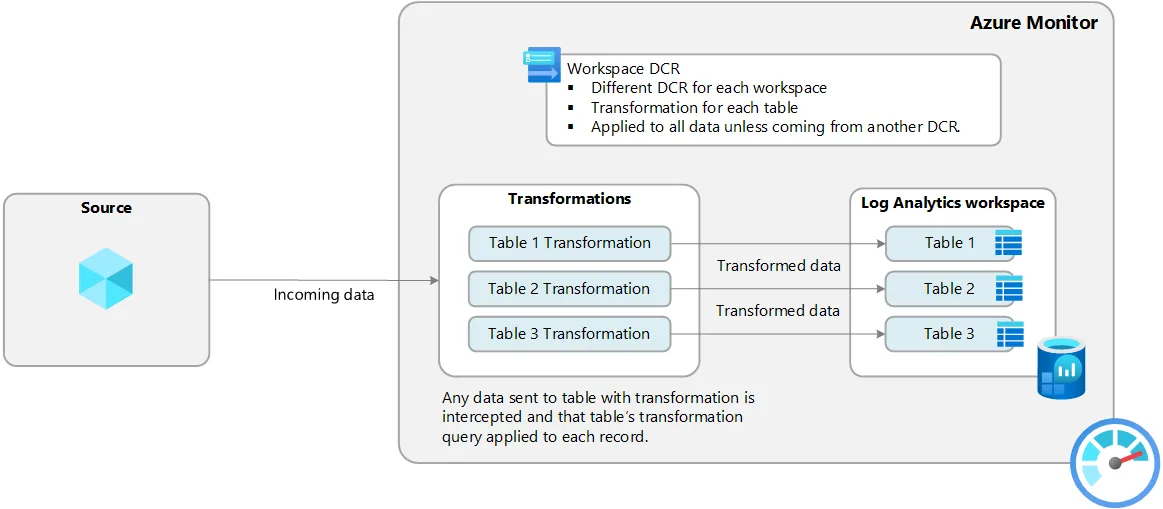 Figure: Architecture of a Workspace Transformation Data Collection Rule.
The illustration shows the architecture of a Data Collection Rule for an Azure Monitor Log Analytics Workspace resource. The data source sends data to Azure Log Analytics Workspace. Similar to a pipeline in an ETL strategy, it passes through the Data Collection Rule, which filters each entry using a Kusto Query Language (KQL) query before the data is stored in the workspace tables.
Note: You can create new calculated columns in KQL. However, they incur additional costs because that data is also stored in Azure Log Analytics Workspace.
Table transformations with Data Collection Rules
Custom tables and Microsoft-supported tables can be transformed with Data Collection Rules (DCRs) in Azure Monitor to reduce the volume of collected data and lower costs.
1. Create a Data Collection Rule
To create a table transformation, open Settings in the left-hand menu and navigate to Tables. Select the table for which you want to create a Data Collection Rule.
In our case, this is AppRequests, the table Application Insights uses by default to store web application data. Each table provides a context-menu option for creating a Data Collection Rule.
The video shows where to find the Data Collection Rule for a table transformation in the Azure Portal.
A guided menu opens where we can create the Data Collection Rule.
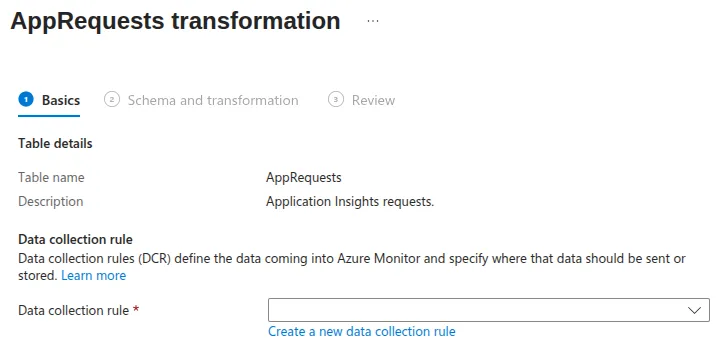 Figure: Data Collection Rule wizard.
The fields are already populated because we are creating the rule from the AppRequests table’s context menu. If no Data Collection Rule exists for this Log Analytics Workspace yet, we can create one and link it to the table.
If a Data Collection Rule already exists for the workspace, it is selected automatically and a new KQL query for the relevant table is added to that rule.
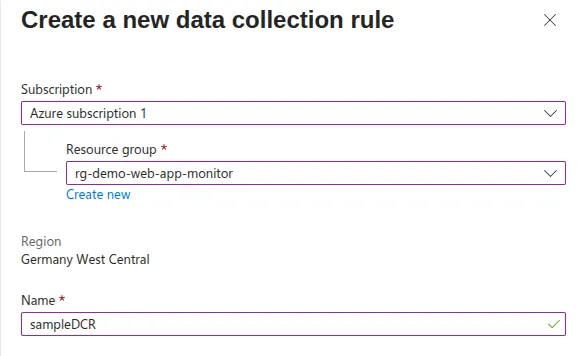 Figure: Creating a new Data Collection Rule.
We configure a meaningful name for the Data Collection Rule and choose its subscription and resource group.
Warning: The Data Collection Rule is bound to the same region as the Log Analytics Workspace resource.
2. Write a KQL query for the table transformation
After completing the few required fields, we move to the next step and create the KQL queries.
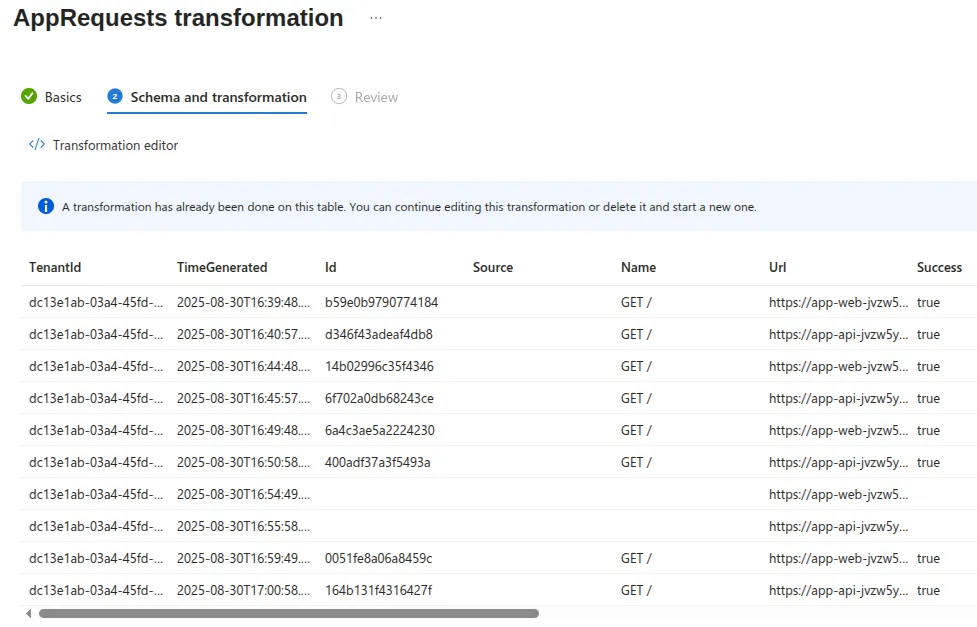 Figure: KQL query for a table transformation.
First, we see a preview of the data currently stored in the table. The preview is limited to ten records, which helps us understand the data structure.
We now filter this data with a KQL query, opening the KQL editor by clicking “Transformation editor”.
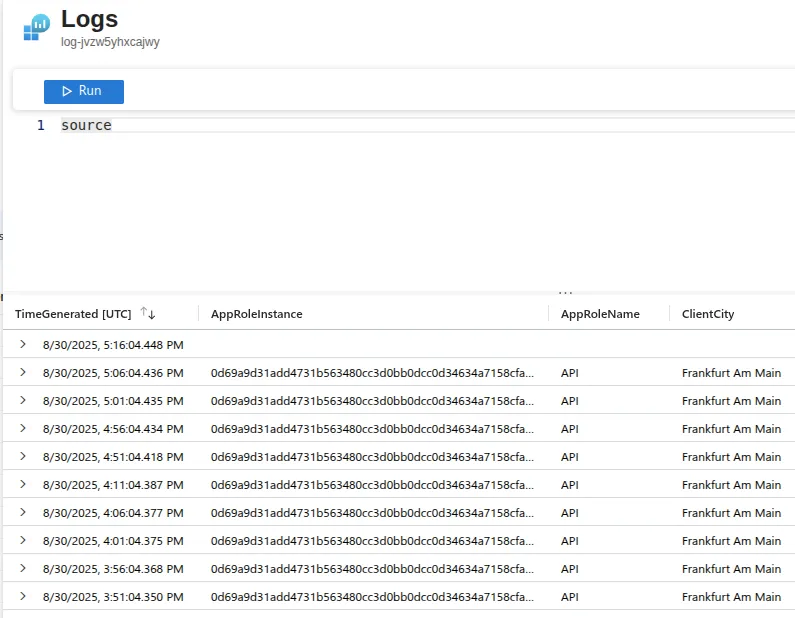 Figure: Opening the KQL editor.
The source keyword is an alias for the table currently used by the table transformation in the Data Collection Rule. Clicking “Run” displays the ten most recent records.
We can now write the KQL query to reduce data volume. The query depends on the use case and business requirements.
In our case, we only want to collect the TimeGenerated and Url columns from the table and send them to Azure Log Analytics Workspace.
The KQL query looks like this:
source
| project TimeGenerated, Url
Clicking “Run” executes the KQL query and displays the result. We confirm it with “Apply”.
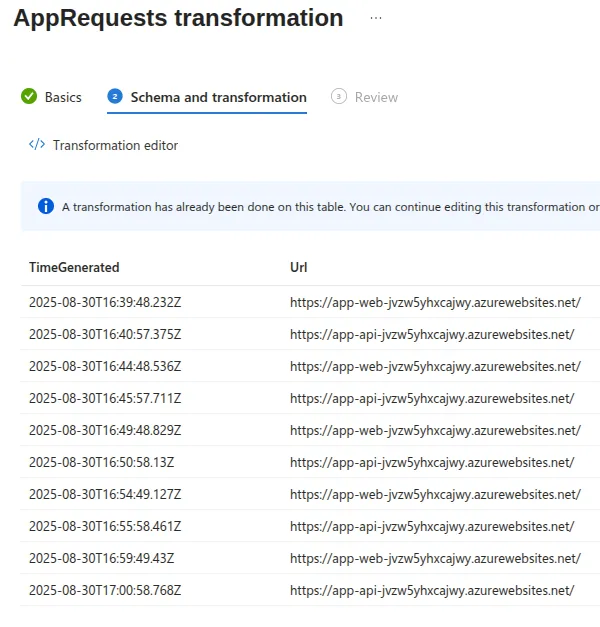 Figure: KQL query result.
The result shows only the TimeGenerated and Url columns. All other columns are not collected and are therefore no longer sent to Azure Log Analytics Workspace.
Note: You can edit and adjust a table transformation’s KQL query at any time.
3. Save the Data Collection Rule
Once the KQL query is written and the preview shows the desired data, we can save the Data Collection Rule by clicking “Create”.
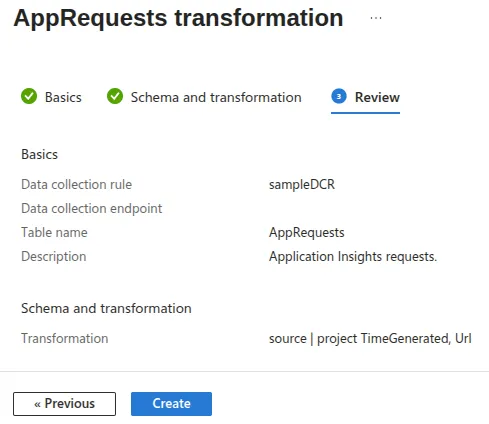 Figure: Data Collection Rule review.
It usually takes one to two hours for the table transformation in the Data Collection Rule to become active and filter data accordingly.
4. Analyze data volume
To analyze the volume sent to Azure Log Analytics Workspace, we evaluate _BilledSize. This standard column exists in every Azure Monitor table and gives the size of each record in bytes.
With this information, we can visualize a comparison of collected data volume before and after the table transformation.
I generated data in the web application over approximately 45 minutes, then analyzed and evaluated the records using this KQL query:
AppRequests
| where TimeGenerated between (todatetime('2025-08-26T16:05:33.02Z') .. todatetime('2025-08-26T16:50:03.39Z'))
| extend _BilledSize=format_bytes(_BilledSize)
| sort by TimeGenerated asc
The result contains 20 records: ten before and ten after the table transformation.
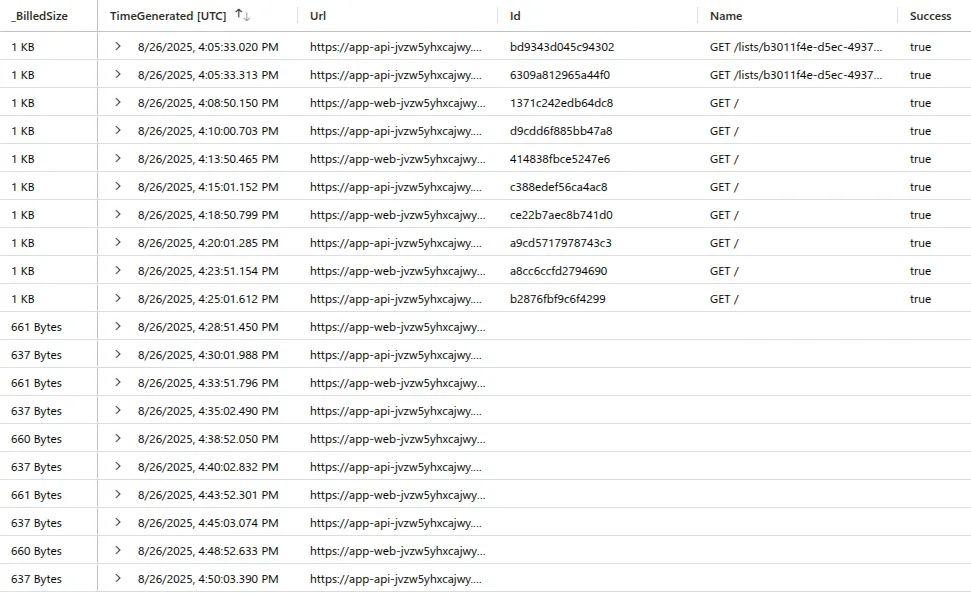 Figure: KQL query for analyzing data volume.
You can see that only the TimeGenerated and Url columns from the KQL query for the table transformation were collected, while the other columns are empty.
This means the volume sent to Azure Log Analytics Workspace was significantly reduced after the table transformation. _BilledSize shows the size of each record in bytes.
The following KQL query groups the records before and after the transformation and displays a total in bytes to illustrate the potential savings:
AppRequests
| where TimeGenerated between (todatetime('2025-08-26T16:05:33.02Z') .. todatetime('2025-08-26T16:50:03.39Z'))
| extend SizeGroup = iif(_BilledSize < 1024, "Below 1KB", "Above 1KB")
| summarize TotalBytes=format_bytes(sum(_BilledSize)), RequestCount=count() by SizeGroup Figure: Comparison of data volume in bytes. The original output uses the German group labels “Unter 1KB” and “Über 1KB”, corresponding to “Below 1KB” and “Above 1KB” in the query above.
The analysis shows that the transformation reduced data volume from 11 KB to 6 KB. That is roughly half the data previously sent to Azure Log Analytics Workspace.
At first glance, the potential savings may not seem large enough. The example covers only a short period for one table, with data from one web application user. But in companies generating large volumes over long periods from different services, the cost savings are enormous.
That is why table transformations with Data Collection Rules are a very effective way to significantly reduce Azure Monitor costs.
5. View the Data Collection Rule settings
You can view and edit the Workspace Transformation Data Collection Rule (DCR) in the Azure Portal at any time. Search for “Data Collection Rules” and select the relevant resource.
 Figure: Data Collection Rules in the Azure Portal.
One important detail: you can create only one Workspace Transformation Data Collection Rule per Log Analytics Workspace. All tables that need a table transformation must therefore be configured in the same rule.
Alongside the subscription, resource group and region, the Kind column identifies the rule as a Workspace Transformation DCR, while Destination points to Azure Monitor logs.
The details are particularly useful. Open them by clicking the DCR’s name.
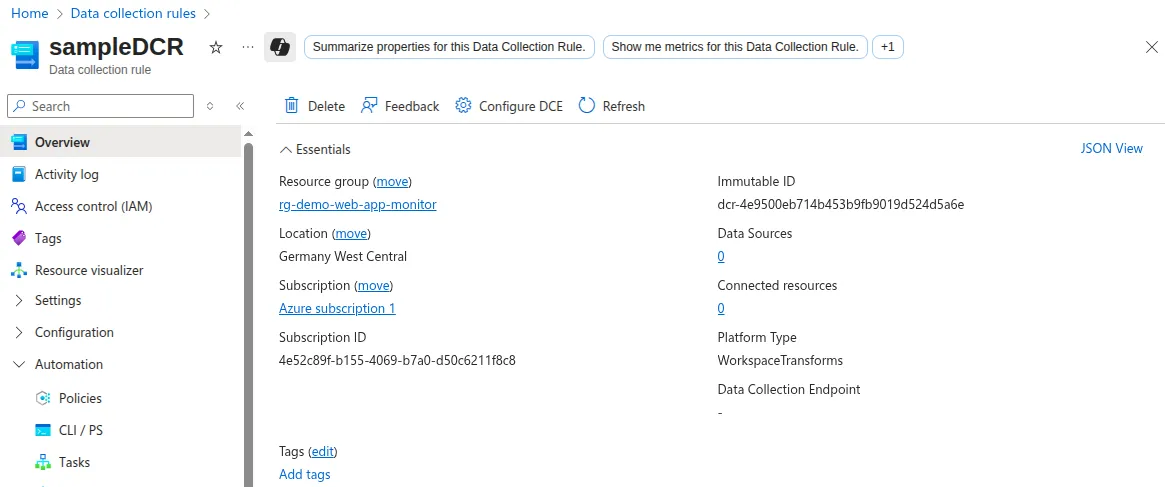 Figure: Details of a Data Collection Rule.
Azure automatically generates the Immutable ID to uniquely identify a Data Collection Rule. However, the most important information is in the JSON view.
Note: The JSON view is the best way to see the complete Data Collection Rule, because the Azure Portal UI does not yet display every detail.
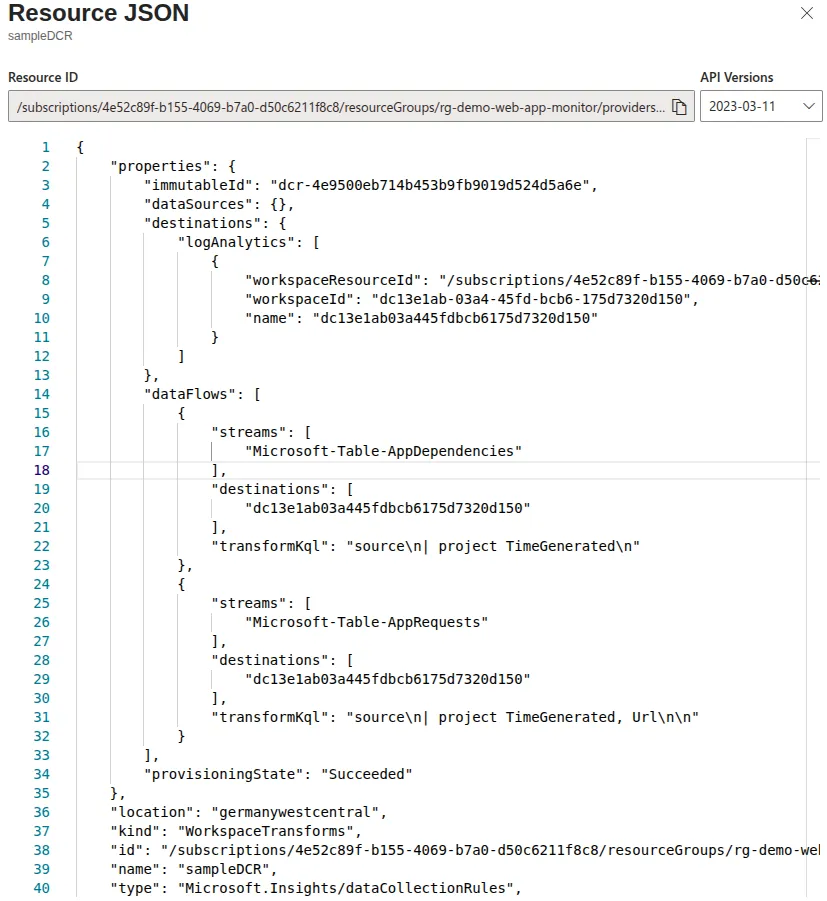 Figure: JSON view of a Data Collection Rule.
The relevant fields are dataFlows, destinations, kind and immutableId:
| Field | Description |
|---|---|
| dataFlows | Lists the tables transformed with a KQL query |
| destinations | Points to the destination for transformed data, such as Log Analytics Workspace |
| kind | Indicates the rule type, for example “Workspace” for a Workspace DCR |
| immutableId | Azure-generated unique ID for each Data Collection Rule |
6. Automatically generated Data Collection Rule metrics
Besides analyzing data volume with a KQL query, there is another way to monitor the volume processed by a Data Collection Rule (DCR) and sent to Azure Log Analytics Workspace.
Each Data Collection Rule automatically generates metrics. In its Azure Monitor detail view, you can find them under Monitoring.
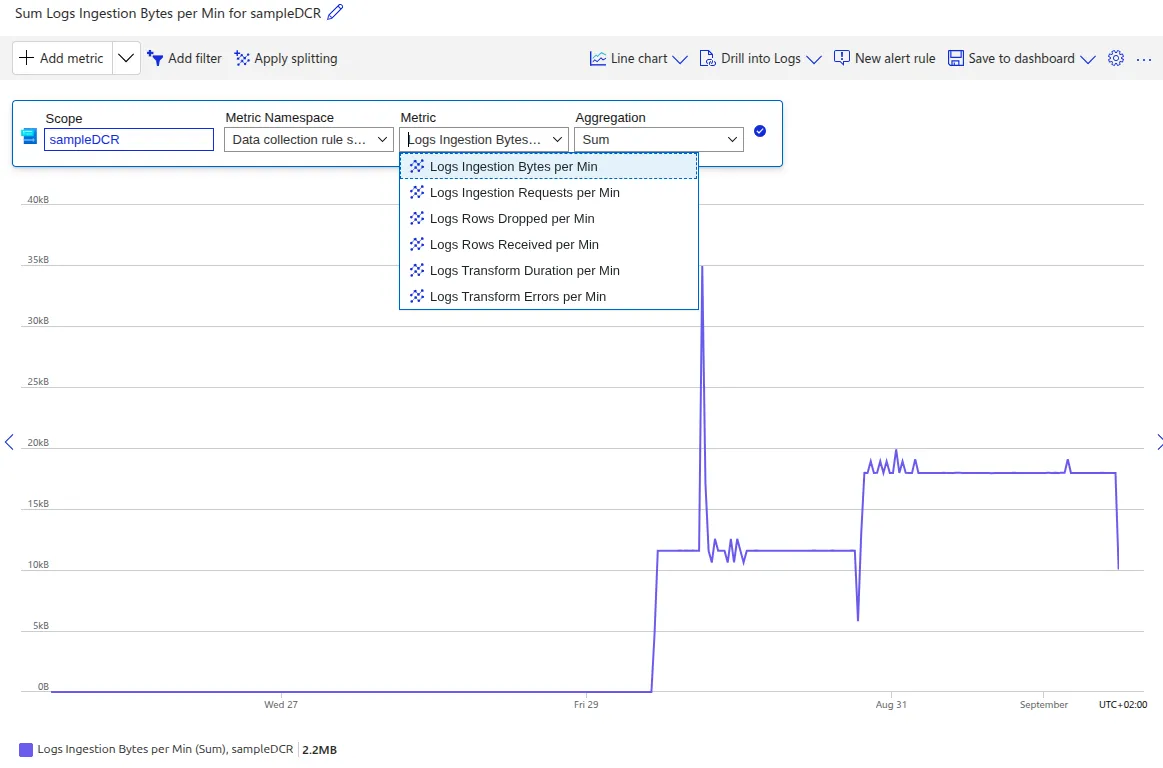 Figure: Data Collection Rule metrics in the Azure Portal.
| Metric | Description |
|---|---|
| Logs Ingestion Bytes per Min | Volume of data processed by the DCR |
| Logs Transformation Errors per Min | Number of errors that occurred during table transformation |
| Logs Rows Received per Min | Number of records processed by the DCR |
These metrics show how much data the Data Collection Rule processes and help monitor and optimize the volume collected.
Conclusion
This guide grew out of a client workshop I delivered on Cost optimization in Azure Monitor. It focused on reducing data volume at the source with Data Collection Rules to lower Azure Monitor costs together with Log Analytics Workspace and Application Insights.