Reduce Azure Monitor costs with efficient data collection
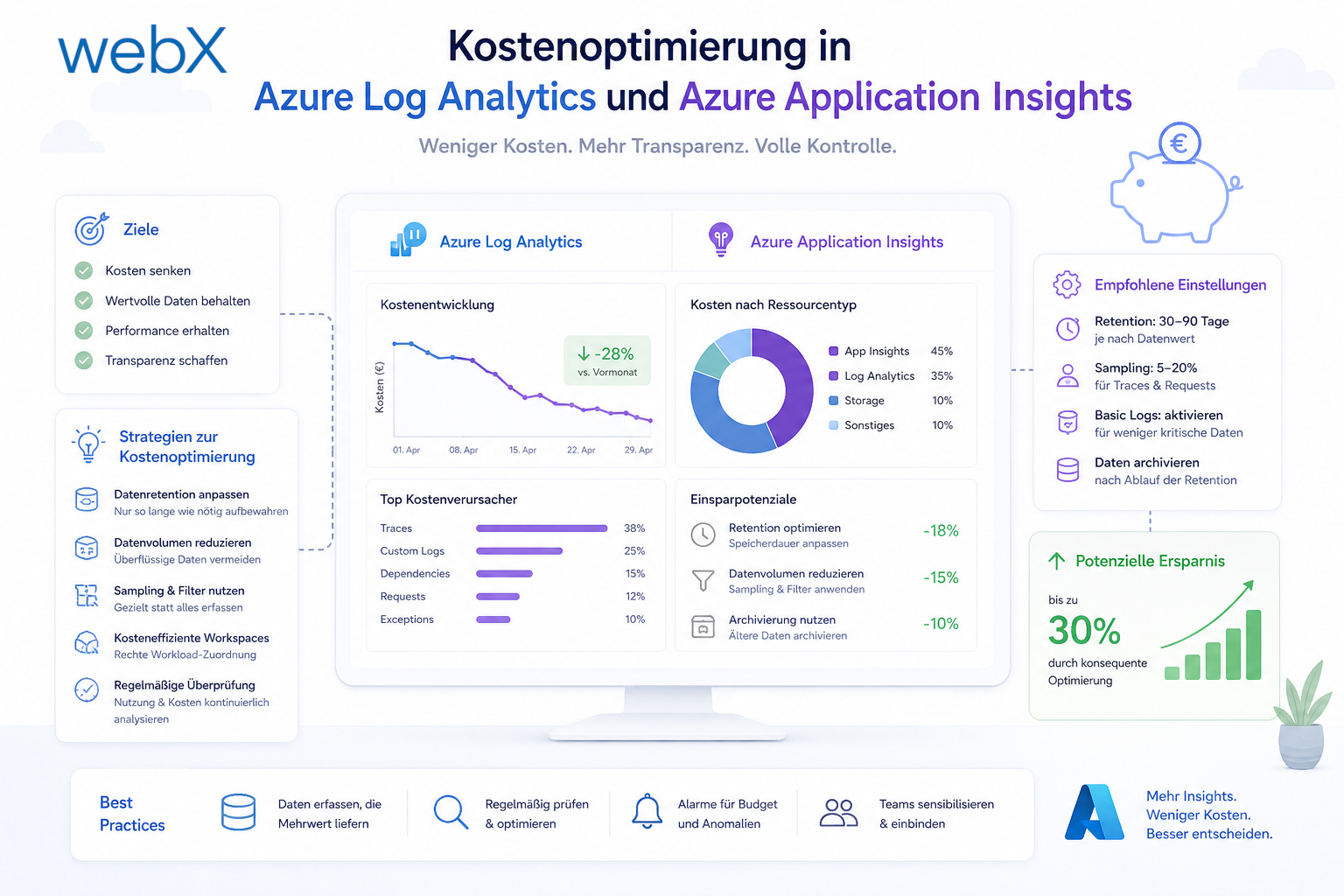
In this guide, I explain how Azure Monitor costs arise and which strategic measures can reduce them.
Contents
- Understand and reduce Azure Monitor costs
- Strategic approaches to cost optimization for companies
- Cost optimization strategies for data collection
- Conclusion
Understand and reduce Azure Monitor costs
Many companies are surprised at the end of each month by the actual cost of Azure Monitor. They often do not know how these costs arise or what they can actively do about them. Microsoft provides comprehensive documentation on optimizing and reducing Azure Monitor costs.
The largest cost factor in Azure Monitor is the volume of data sent from different sources for ingestion and stored in an Azure Log Analytics Workspace. There are also retention costs and charges for transferring data to other Log Analytics Workspaces when executing Kusto Query Language (KQL).
My goal is to establish a basic understanding of Azure Monitor and how to use Azure Log Analytics Workspace with Azure Application Insights. This helps reduce data volume deliberately, identify cost drivers and send only business-relevant data to Azure Monitor.
Microsoft’s overview of recommended measures for
cost optimization in Azure Monitor
This guide focuses on data collection in Application Insights and Log Analytics Workspace. It presents strategies that can help companies reduce the volume of collected data and therefore lower costs.
Strategic approaches to cost optimization for companies
Companies need the right balance between the costs and benefits of Azure Monitor. That is not easy and requires a sound monitoring strategy. Microsoft’s extensive Azure Monitor documentation provides a useful overview, including targeted cost optimization measures for each Azure resource.
The less data collected from all sources, the cheaper Azure Monitor becomes.
Differences between pricing plans
The table below is an extract from the official Azure Monitor pricing calculator. It focuses on the Basic Logs and Analytics Logs table plans. The Auxiliary Logs plan is not considered.
| Plan | Pricing tier | Price | Price/GB | Savings |
|---|---|---|---|---|
| Basic Logs | Pay-as-you-go | €0.604/GB | €0.604/GB | |
| Analytics Logs | Pay-as-you-go | €3.374/GB | €3.374/GB | |
| 100 GB/day | €236.45/day | €2.37/GB | 30% | |
| 200 GB/day | €443.94/day | €2.22/GB | 34% | |
| 300 GB/day | €651.43/day | €2.18/GB | 36% | |
| 400 GB/day | €849.27/day | €2.13/GB | 37% | |
| 500 GB/day | €1,043.49/day | €2.09/GB | 38% | |
| 1,000 GB/day | €2,050.78/day | €2.06/GB | 39% | |
| 2,000 GB/day | €4,005.04/day | €2.01/GB | 41% | |
| 5,000 GB/day | €9,711.01/day | €1.95/GB | 42% | |
| 10,000 GB/day | €22,803.39/day | €2.29/GB | 32% | |
| 25,000 GB/day | €55,331.75/day | €2.22/GB | 34% | |
| 50,000 GB/day | €107,310.05/day | €2.15/GB | 36% |
Region: Germany North. Currency: EUR. Prices recorded on 25 August 2025.
Azure Monitor pricing calculator
The table shows that Basic Logs are significantly cheaper than Analytics Logs. Both are available with pay-as-you-go pricing. Basic Logs are designed for simple analysis, with limitations on analysis across multiple tables and no support for complex queries. Analytics Logs provide all correlation and visualization features, support queries across multiple Log Analytics Workspaces and are intended for comprehensive data analysis.
View the pricing plan in the Azure portal
To see the pricing plan currently selected for a Log Analytics Workspace resource, open the Azure portal and find the relevant service:
- Sign in to the Azure portal.
- Select “All services” in the left menu or search directly for “Log Analytics Workspace”.
- Select a Log Analytics Workspace resource from the list.
- Select “Usage and estimated costs” in the menu.
- The selected pricing plan and Microsoft’s recommendation based on data usage are displayed.
- Change the pricing plan if needed.
The original recording below shows the Azure portal in German.
View the table plan in the Azure portal
To inspect an individual table in a Log Analytics Workspace, follow steps 1 to 3 in View the pricing plan in the Azure portal, then continue:
- Select “Tables” in the menu.
- Select a table, such as “AppEvents” or “AzureMetrics”.
- Check the table plan and change it if needed.
The original recording below also retains the German Azure portal interface.
Read more about supported tables and setting the table plan.
Pricing plan vs. table plan
A table plan is either Basic Logs or Analytics Logs and determines both the costs and the available data analysis features.
A pricing plan is either pay-as-you-go or a commitment tier with a minimum volume of data to ingest. Billing is based either on gigabytes per day or on an agreed minimum price.
Company scenarios
This section explores scenarios commonly encountered in companies. We distinguish between a startup, a medium-sized company and an enterprise, examining their table plans and associated costs.
1. TechStart GmbH
Goal: Error diagnosis and performance monitoring
Plan: Basic Logs, pay-as-you-go
Description: Small SaaS company
Usage: 20 GB/month
Cost calculation:
- Price per GB: €0.604
- Monthly usage: 20 GB
- Total cost:
20 * €0.604 = €12.08/month
Result: TechStart uses the Basic plan because it is inexpensive and sufficient for simple analysis.
2. LogiPro AG
Goal: Real-time supply chain analysis
Plan: Analytics Logs
Description: Medium-sized logistics company
Usage: 100 GB/day
Option 1 with pay-as-you-go pricing
Cost calculation:
- Price per GB: €3.374
- Daily cost:
100 * €3.374 = €337.40 - Monthly cost over 30 days:
30 * €337.40 = €10,122.00
Option 2 with a 100 GB per day commitment tier
Cost calculation:
- Fixed daily price: €236.45
- Effective price per GB:
€236.45 / 100 = €2.37 - Monthly cost:
30 * €236.45 = €7,093.50
Savings with the commitment tier
| Model | Cost/month | Savings in EUR | Savings in % |
|---|---|---|---|
| Pay-as-you-go | €10,122.00 | None | None |
| Commitment tier, 100 GB/day | €7,093.50 | €3,028.50 | About 30% |
Result: LogiPro commits to a minimum of 100 GB per day and saves around €3,000 each month because of the lower price per GB.
3. BioTrack Solutions
Goal: Combining system logs with experimental data analysis
Plan: Basic Logs and Analytics Logs
Description: Research company
Usage:
- Basic Logs: 200 GB/month
- Analytics Logs: 1,000 GB/day
Cost calculation:
- Basic Logs:
200 * €0.604 = €120.80/month - Analytics Logs, commitment tier: €2,050.78/day
- Monthly cost:
30 * €2,050.78 = €61,523.40
- Monthly cost:
- Total cost:
€120.80 + €61,523.40 = €61,644.20/month
Result: BioTrack splits its data and combines both table plans to maximize savings.
Comparison table
This table is a fictional example. Actual costs can vary further by region.
| Company | Plan | Usage | Model | Cost | Savings in EUR | Savings in % |
|---|---|---|---|---|---|---|
| TS | B | 20 GB/month | P | €12.08 | None | None |
| LP | A | 100 GB/day | N | €10,122.00 | None | None |
| LP | A | 100 GB/day | P | €7,093.50 | €3,028.50 | 30% |
| BS | B+A | 200 GB + 1,000 GB/day | P | €61,644.20 | None | 39% |
The last column shows relative savings compared with pay-as-you-go billing. See Differences between pricing plans for details.
Company:
- TS = TechStart GmbH
- LP = LogiPro AG
- BS = BioTrack Solutions
Plan:
- B = Basic Logs
- A = Analytics Logs
- B+A = Combination of Basic Logs and Analytics Logs
Model:
- N = Pay-as-you-go
- P = Commitment tier
Reduce costs with the right table plan
We now know how Azure Monitor costs arise and what the main driver is: the volume of ingested data sent from all sources to a Log Analytics Workspace. This gives us the first cost optimization measure.
Choosing the right table plan makes a substantial difference. Should we use Basic Logs or Analytics Logs? Does a commitment tier, such as 100 GB per day, make sense to save more compared with pay-as-you-go pricing?
The next step is to deliberately minimize collected and transferred data. The less data sent to the Log Analytics Workspace, the lower the monthly cost.
Cost optimization strategies for data collection
Companies need enough data in Azure Log Analytics Workspace for effective analysis while keeping costs under control. This starts with data collection.
The greatest opportunity to reduce Azure Monitor costs is already at the collection stage. Companies therefore need to decide which data they actually need for monitoring and analysis.
The focus here is on specific strategic measures available in Azure Monitor, Log Analytics Workspace and Application Insights to reduce data volume at its sources.
Data Collection Rules (DCR)
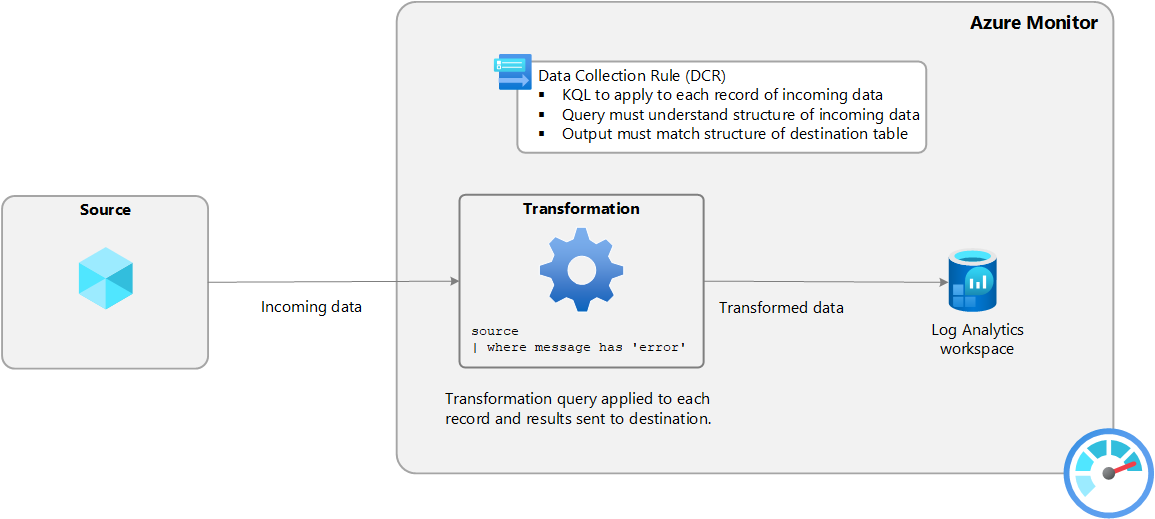
Data Collection Rules are a strategic measure in Azure Monitor for fine-grained control over data collection, filtering and transforming data at its source. This helps collect only the data actually needed for monitoring and analysis.
My blog provides a more detailed guide to reducing Azure Monitor costs with Data Collection Rules and table transformations.
Diagnostic settings
Diagnostic settings collect additional types of data from Azure resources and send them to different destinations, including other Log Analytics Workspaces, Event Hubs, third-party services and Azure Storage.
This guide asks how Azure Monitor costs can be reduced. Diagnostic settings appear unsuitable for that purpose because they can create additional costs, so they are not considered further here.
Log Analytics Workspace
All data ingested into Azure Monitor ends up in a central data store, the Log Analytics Workspace. This Azure resource is designed to store and analyze extremely large data volumes. The volume can reach petabytes and is virtually unlimited.
A Log Analytics Workspace can collect and store data from different sources, including other Azure services and third-party services.
It stores this data in different tables, each associated with a particular Azure service or external source. External data sources use custom tables, while predefined tables are available for Azure services.
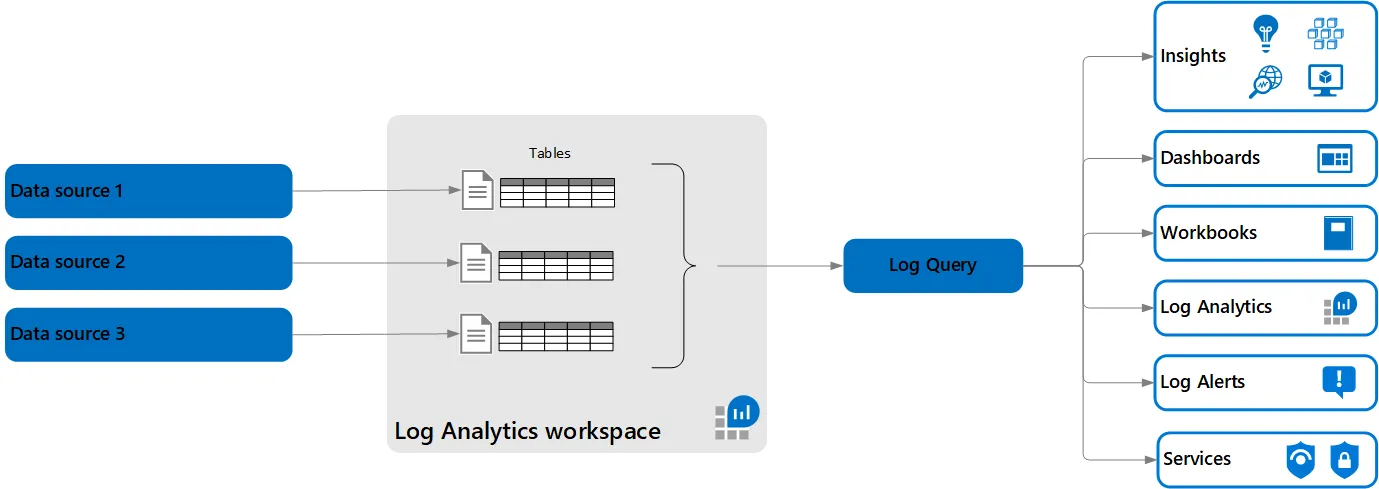 Figure: A Log Analytics Workspace with different data sources and tables. The original diagram is retained; German labels may be present.
For Application Insights, these include:
| Table | Description |
|---|---|
| AppRequests | Incoming HTTP requests, including duration, success and error code |
| AppDependencies | External dependencies such as database or API calls |
| AppExceptions | Exceptions and errors in code |
| AppTraces | Custom log output and trace messages |
| AppPageViews | Page views and their duration for web applications |
| AppMetrics | Custom metrics such as counters or measurements |
| AppEvents | Custom events such as clicks or interactions |
| AppAvailabilityResults | Availability test results, including ping and URL checks |
These tables are available in Log Analytics Workspace for an Application Insights resource. They are recognizable by the “App” prefix in their names.
Each table holds specific data collected by Application Insights for monitoring and analyzing web applications. The default table plan is Analytics Logs. Some tables can be changed to Basic Logs.
For more on the different Basic Logs and Analytics Logs table plans and how to set them per table, see Differences between pricing plans.
Because Log Analytics Workspace plays a central role in this guide’s Azure Monitor cost optimization, we will examine its most important settings and features for controlling costs.
Usage and estimated costs
To view usage and estimated costs for a Log Analytics Workspace resource, open the Azure portal and find the relevant service:
- Sign in to the Azure portal.
- Select “All services” in the left menu or search directly for “Log Analytics Workspace”.
- Select a Log Analytics Workspace resource from the list.
- Select “Usage and estimated costs” in the menu.
- View estimated costs for the next 30 days based on current usage.
- Adjust data collection or the pricing plan if needed.
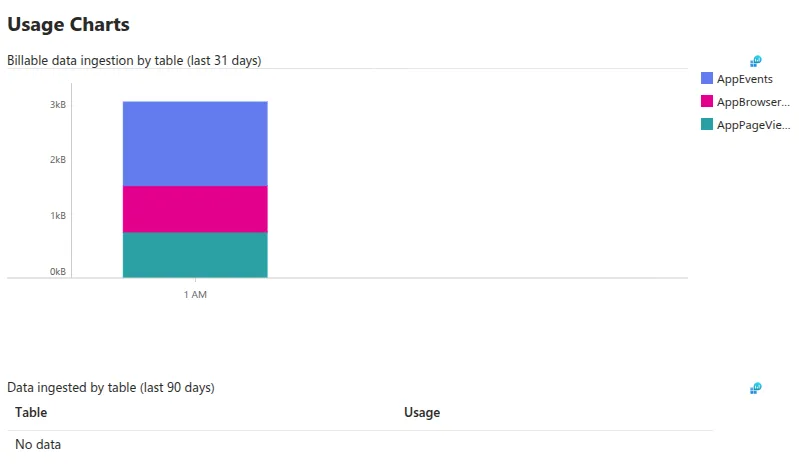 Figure: Usage and estimated costs for a Log Analytics Workspace resource. The original screenshot retains the German Azure portal interface.
Daily cap
A daily cap can be set for data collection to avoid unexpectedly high costs. Once the limit is reached, no further data is collected. This is especially useful for limiting costs during months with unusually high data usage.
Retention costs
Tables belonging to Application Insights resources also retain data free of charge for 90 days. The retention period can be adjusted individually for each table.
Table transformations
Table transformations filter, rename or transform data before it is stored in the Log Analytics Workspace. This can reduce stored volume by retaining only relevant information. My article on Data Collection Rules (DCR) explains how this works in detail.
Conclusion
Azure Monitor is a powerful tool for monitoring and analyzing cloud applications and infrastructure. Costs can rise quickly without targeted optimization. The greatest opportunity to reduce costs is at the collection stage. Companies should determine which data they actually need and use strategies such as Data Collection Rules (DCR) to minimize volume. Choosing the right table plan is also essential for further optimization. These strategies can effectively reduce Azure Monitor costs while preserving the benefits of cloud monitoring and analysis.