Debugging Angular in VS Code on Ubuntu
How to debug Angular projects in VS Code on Ubuntu again when the default debugger stops working. A step-by-step guide with practical tips.
Contents
Starting point
After switching from Windows to Ubuntu, I could no longer debug my Angular apps in VS Code. The default debugger no longer worked out of the box as it used to. That was frustrating because I had grown used to convenient debugging.
I investigated and found that VS Code does not automatically detect the path to the configured default browser. On reflection, that makes sense: Ubuntu installs and manages software packages very differently from Windows.
How I did it
First, I tried to start the debugger. VS Code displayed an error saying it could not find the browser. I copied the error message into Google and quickly found the solution.
The launch.json file needs to tell VS Code where to find the executable. The necessary execution permissions also need to be set so the debugger starts normally and I can debug my Angular app.
1. Install Chromium or another browser
I installed Chromium through Snap:
sudo snap install chromium2. Find the executable path
Use whereis to find where Chromium was installed on Ubuntu:
whereis chromium3. Set permissions
At this point, VS Code may report that it lacks permission to execute the file. Set the permissions with:
sudo chmod +x /snap/bin/chromium4. Adjust launch.json
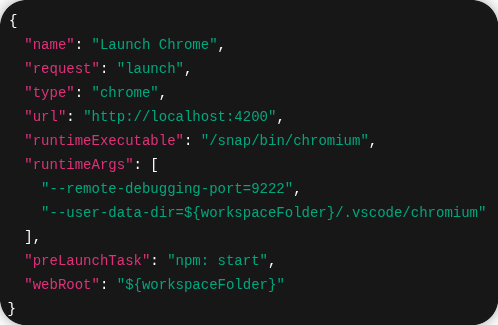
My launch.json now looks like this:
{
  "version": "0.2.0",
  "configurations": [
    {
      "name": "Launch Chrome",
      "request": "launch",
      "type": "chrome",
      "url": "http://localhost:4200",
      "runtimeExecutable": "/snap/bin/chromium",
      "runtimeArgs": ["--remote-debugging-port=9222", "--user-data-dir=${workspaceFolder}/.vscode/chromium"],
      "preLaunchTask": "npm: start",
      "webRoot": "${workspaceFolder}"
    },
    {
      "name": "ng serve",
      "type": "chrome",
      "request": "launch",
      "preLaunchTask": "npm: start",
      "url": "http://localhost:4200/"
    },
    {
      "name": "ng test",
      "type": "chrome",
      "request": "launch",
      "preLaunchTask": "npm: test",
      "url": "http://localhost:9876/debug.html"
    }
  ]
}
Tip: If you use a different browser, adjust the path accordingly.
What do these settings mean?
| Keyword | Description |
|---|---|
runtimeExecutable | Path to the browser executable |
runtimeArgs | Additional arguments, such as the debugger port |
preLaunchTask | Starts the Angular development server |
webRoot | Root directory of the Angular app |
${workspaceFolder} is a predefined VS Code variable that automatically points to the project directory. In my case, VS Code would resolve the path to /home/david/projects/<name-des-projekts>/src.
The --user-data-dir argument matters for debugging. It creates a new temporary profile and prevents browser extensions from causing problems.
Note: If you have many browser extensions installed, create a separate profile for debugging or use guest mode. This keeps your main profile clean and avoids unexpected extension-related issues.
Conclusion
With these adjustments, I can debug Angular projects on Ubuntu as usual again.